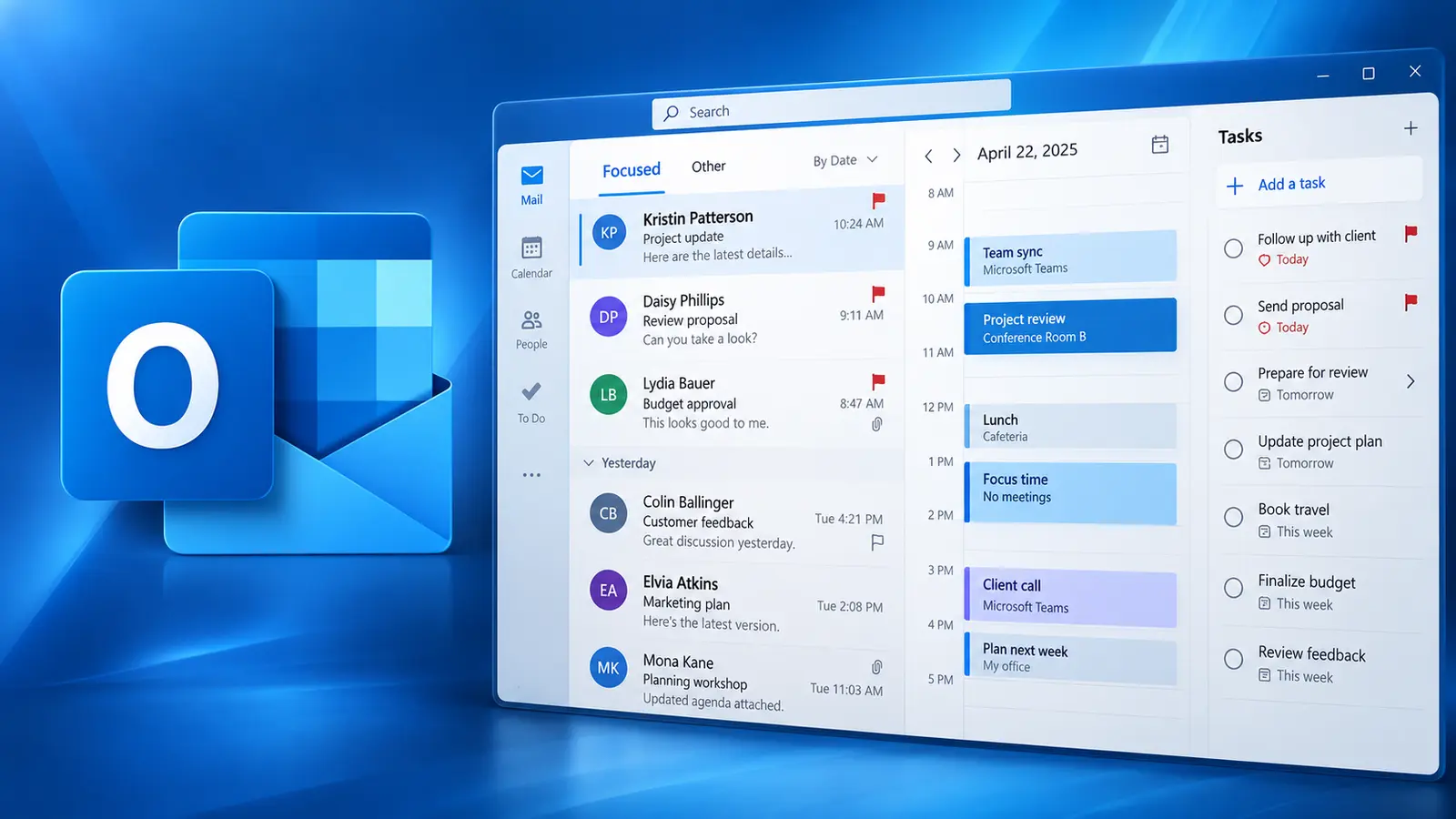

½ day Copilot series
Copilot in Outlook
Work Smarter with Email, Calendar and Meetings
C$249 per workshop, per person
Course overview
Microsoft 365 Copilot in Outlook can help you spend less time managing email and meetings and more time acting on the information that matters.
In this focused, hands-on workshop, participants learn how to use Copilot to summarize complex email conversations, identify decisions and action items, prioritize messages, draft and improve communications, prepare for meetings, and use Copilot Chat to find and synthesize information across Outlook and related Microsoft 365 content.
Rather than attempting to cover every Copilot feature, the workshop concentrates on the Outlook workflows that can provide the greatest day-to-day productivity gains.
Participants apply the Goal, Context, Constraints and Sources prompt framework throughout the session and spend approximately 60% of the workshop completing practical exercises using realistic business scenarios.
Course agenda
Unit 1 — Copilot in Outlook Essentials
20 minutes
- Where Copilot appears in Outlook
- Contextual Copilot versus Copilot Chat
- What Copilot can access
- Goal, Context, Constraints and Sources refresher
- Choosing the right Copilot experience
- Understanding grounding and permissions
- Recognizing when Copilot should assist versus when manual review is necessary
Hands-on practice: Improve several common Outlook prompts and compare the quality of the resulting responses.
Unit 2 — Understand, Prioritize and Manage Email
50 minutes
- Summarize individual email conversations
- Summarize supported attachments
- Identify key information without rereading the entire thread
- Extract decisions and commitments
- Identify unanswered questions
- Find action items and responsibilities
- Determine which messages require immediate attention
- Identify important unread communications
- Prioritize email based on project, sender, deadline or business impact
- Ask Copilot Chat questions about inbox activity
- Find communications related to a specific person, project or topic
- Surface outstanding follow-ups
- Identify conversations that may be waiting for your response
- Use natural language to help organize inbox work
- Create or explore Outlook rules where supported
- Ask follow-up questions to clarify incomplete or ambiguous conversations
Hands-on scenario: Participants work through a realistic inbox containing project updates, customer requests and internal messages. They must determine what requires attention first, identify outstanding responsibilities and produce a prioritized action list.
Unit 3 — Draft, Improve and Respond to Email
45 minutes
- Draft new email from a prompt
- Draft responses using conversation context
- Reference relevant business information
- Clearly define audience, purpose and desired outcome
- Adjust tone and length
- Rewrite for clarity and conciseness
- Make messages more professional or more conversational
- Create different versions for different audiences
- Use Coaching by Copilot
- Evaluate tone, sentiment and clarity
- Apply coaching recommendations selectively
- Turn complex information into concise email
- Generate follow-up messages
- Create reminders or follow-up wording based on outstanding commitments
- Maintain your own professional voice
- Review Copilot-generated communication before sending
Hands-on scenario: Participants create and refine several messages from the same business situation, including an internal update, a client response and a follow-up message.
Break
10 minutes
Unit 4 — Meetings, Calendar and Follow-Up Productivity
55 minutes
- Use Copilot Chat to work with calendar information
- Prepare for upcoming meetings
- Surface relevant email and supporting information
- Identify unresolved issues before a meeting
- Generate meeting agendas
- Build agendas from existing email conversations
- Identify questions that need to be addressed
- Generate meeting objectives
- Schedule or help prepare meetings where supported
- Turn an email conversation into a meeting requirement
- Find related documents and context
- Prepare a concise meeting briefing
- Identify follow-up items after a meeting
- Draft post-meeting communications
- Identify commitments that should be tracked
- Use Copilot Chat to answer questions such as: What should I focus on today? Which messages require follow-up? What meetings should I prepare for? What commitments are still outstanding?
- Build a personalized start-of-day or end-of-day Outlook workflow
Hands-on scenario: Participants use email and calendar information to prepare for an upcoming meeting, create an agenda, identify unresolved issues, and draft the required follow-up communication.
Key takeaway
Participants leave with a practical workflow for using Copilot throughout the Outlook workday—from understanding and prioritizing incoming information, to communicating effectively, to preparing for meetings and following through on commitments.
What we cover
- 1Copilot in Outlook essentials
- 2Understand, prioritize and manage email
- 3Draft, improve and respond to email
- 4Meetings, calendar and follow-up productivity
Other workshops in the series
Copilot in Word
Create, rewrite, summarize and improve documents with the power of Copilot.
Copilot in Excel
Analyze data, create formulas, visualize insights and solve problems faster.
Copilot in PowerPoint
Turn ideas and information into compelling presentations faster with Copilot.
Copilot in Teams
Enhance meetings, chats and collaboration with Copilot in Microsoft Teams.
Building Copilot Agents
Learn how to build and use Copilot Agents to automate tasks and solve business problems.